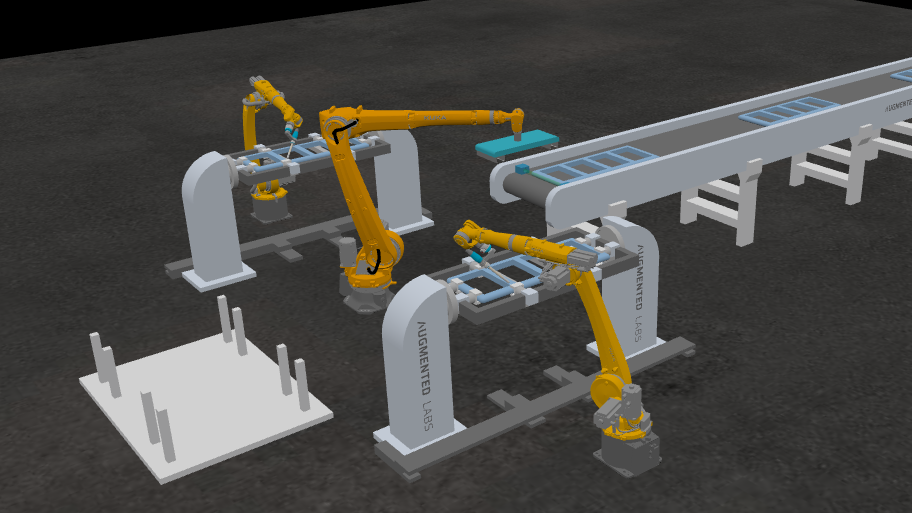
ROBOTICA Studio 1.3 - Materials and Diagnostics
Tiago Carvalho
Apr 07, 2026
ROBOTICA Studio goes 1.3! 🚀
This release brings four new important features:
- A new material system
- An error/warning system
- Real-time global signal updates
- Enhanced mesh selection system
Material System
ROBOTICA Studio 1.3 introduces a brand-new material system that lets you change the appearance of your meshes directly inside the application, so you don't need to go back to CAD software just to update color, surface look, or visual style. When a new .GLTF/.GLB or STEP file is imported, the materials are automatically created according to your CAD design.
You can edit two types of materials: PBR (Physically Based Rendering) and Standard.
PBR (Physically Based Rendering)
Use PBR materials when you want a more realistic look. You can adjust key physical properties such as:
- Metallic
- Roughness
- Transparency
This helps create scenes that better represent real-world objects and improves the quality of presentations and reviews.
Standard Materials
Standard materials are designed for fast visualization. They don’t simulate physical properties (like metallic or roughness), but they’re perfect for:
- quick layout work
- clean, simplified scenes
- lightweight visual customization
To update the material of any mesh you can simply click on the graphics component and select a material that is already imported, or even edit it directly on the graphics component with our quick settings.
To add and create new materials you can just go to the settings window and add new materials where you can name your material, change its type (PBR or standard) and settings. A live preview of the material is shown for you to have an idea on how the material has changed.
Error & Warning System
Simulation reliability matters, and ROBOTICA Studio 1.3 introduces a dedicated error and warning system that helps you build stable, well-defined simulations from the start, giving you clear visibility into issues across two key stages of interaction: edit-time, while you’re configuring your project, and runtime, while the simulation is running.
Project Messages (edit-time)
While you’re building your scene, Studio proactively flags configuration issues related to the scene tree, components, and programs, so you can fix problems before you hit Run.
Common examples include:
- badly defined articulations
- incomplete or incorrectly configured instructions
- Hierarchys with physical objects inside other physical objects
- other setup issues that can compromise stability
These messages come in two levels:
- Warnings: non-blocking recommendations that improve simulation quality.
- Errors: critical issues that block simulation startup, because they can directly impact stability or performance.
And to speed things up, you can click a message to jump directly to the element that needs attention.
Console Messages (runtime)
During simulation runtime, Studio also reports what’s happening live, including events and issues that occur while the simulation is running.
Console messages are grouped as:
- Information: user-generated runtime messages.
- Warnings: runtime issues that may require attention.
- Errors: critical runtime issues that stop the simulation.
Real-time signal updates
To help you debug faster and understand what’s happening during runtime, ROBOTICA Studio now supports real-time signal updates. We are now supporting real time updates for global signals and entity based signals.
Global signal updates
As stated in our documentation global signals work like variables that let you coordinate behaviors between components (robots, axis and others) across the scene.
By being able to see the values of these signals in real time, this can give you a clearer view of:
- how the signals are being updated according to your programs
- what might be disrupting the flow (e.g. a global signal not being properly set)
Entity based signal updates
On the other hand you can also see a live update of the entity based signals (such as conveyor or sensor signals). As stated in our documentation entity signals come from components in the scene that contain or expose signals. For example a sensor will expose a boolean output if activated.
By being able to see the state of sensors, conveyors and other signal exposing components in the scene you can have a clear view of:
- how the signals are being updated according to your component's configurations
- what might be disrupting the flow (e.g. a conveyor signal not being properly turned off)
Enhanced selection system
Selecting objects in complex scenes is now much clearer.
- Selected objects now use an outline highlight, making them easier to identify in more complex scenes.
- When you hover objects in the scene tree, the corresponding object is highlighted in the scene.
This makes it easier to understand object hierarchies and identify meshes inside other meshes, something that was not possible in previous versions.